🧭 ABOUT THIS GUIDE (EGRESS WEB)
For Recipients of Secure Emails from DCS Payroll Agency Ltd
This guide shows you how to open and share secure emails in the Egress web client.


You need to use Egress Web Software to view a secure message.
- An Egress account (create a Free account during sign-in)
- A modern browser (Chrome, Edge, Safari)
- Allow pop-ups for Egress if your browser blocks them
You read secure messages on a protected web page instead of your normal inbox.
You access each message using a personal link sent to you by email.
- The link is unique to you
- Open it to view the message and any attachments in Egress
Some organisations let you use Egress add-ins/plug-ins inside your email app.
If your IT team enables these, you may not need to sign in as often.
- Ask IT if add-ins are available and approved
- Add-ins are optional - this guide uses the web route
If you still have issues, use the Egress Help Centre or contact your IT support.
- Troubleshooting section in this guide
- Egress Help Centre: help.egress.com
- Your usual IT support for local issues
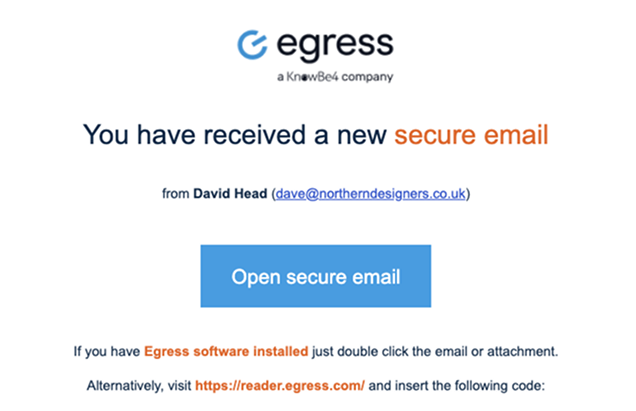
You'll get an email that looks like this:
- Subject: You've received a secure email from DCS Payroll Agency Ltd.
- Body: Contains a large blue "Open Secure Email" button.
- Sender: Usually someone at DCS Payroll using Egress.
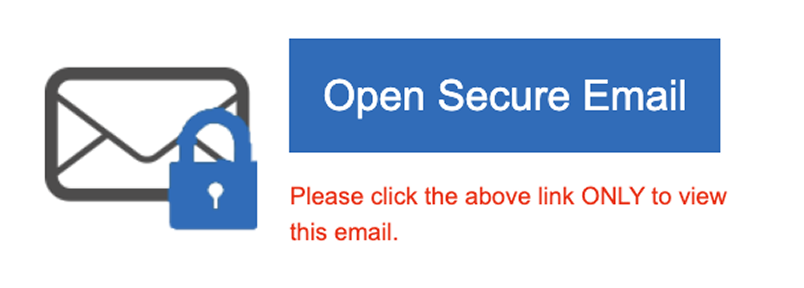
Click the blue "Open Secure Email" button in the message.
⚠️ Do not forward or share the link with others — it's unique to you.
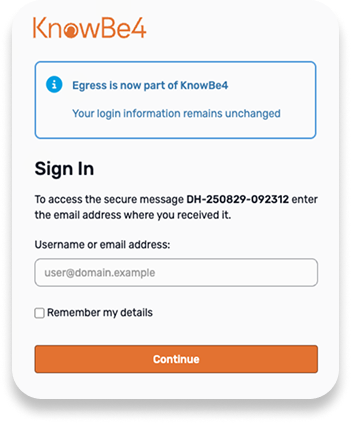
You'll be redirected to the Egress Reader site in your browser:
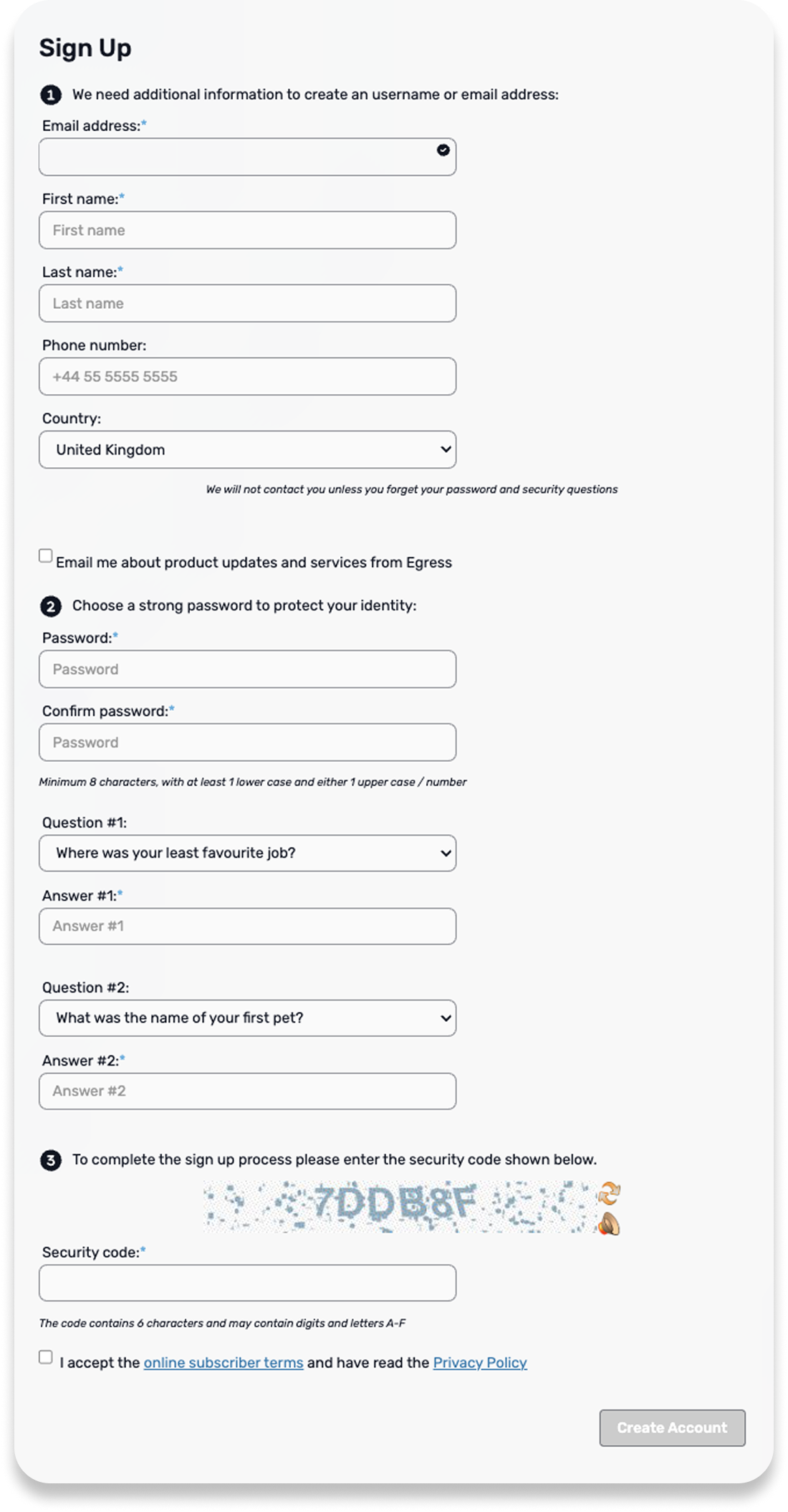
If it's your first time
Click Register and follow the setup steps:
- Use the same email address the message was sent to.
- Create a secure password.
- You may be asked to verify via a one-time code.
If you already have an Egress account
Just sign in with your existing credentials.
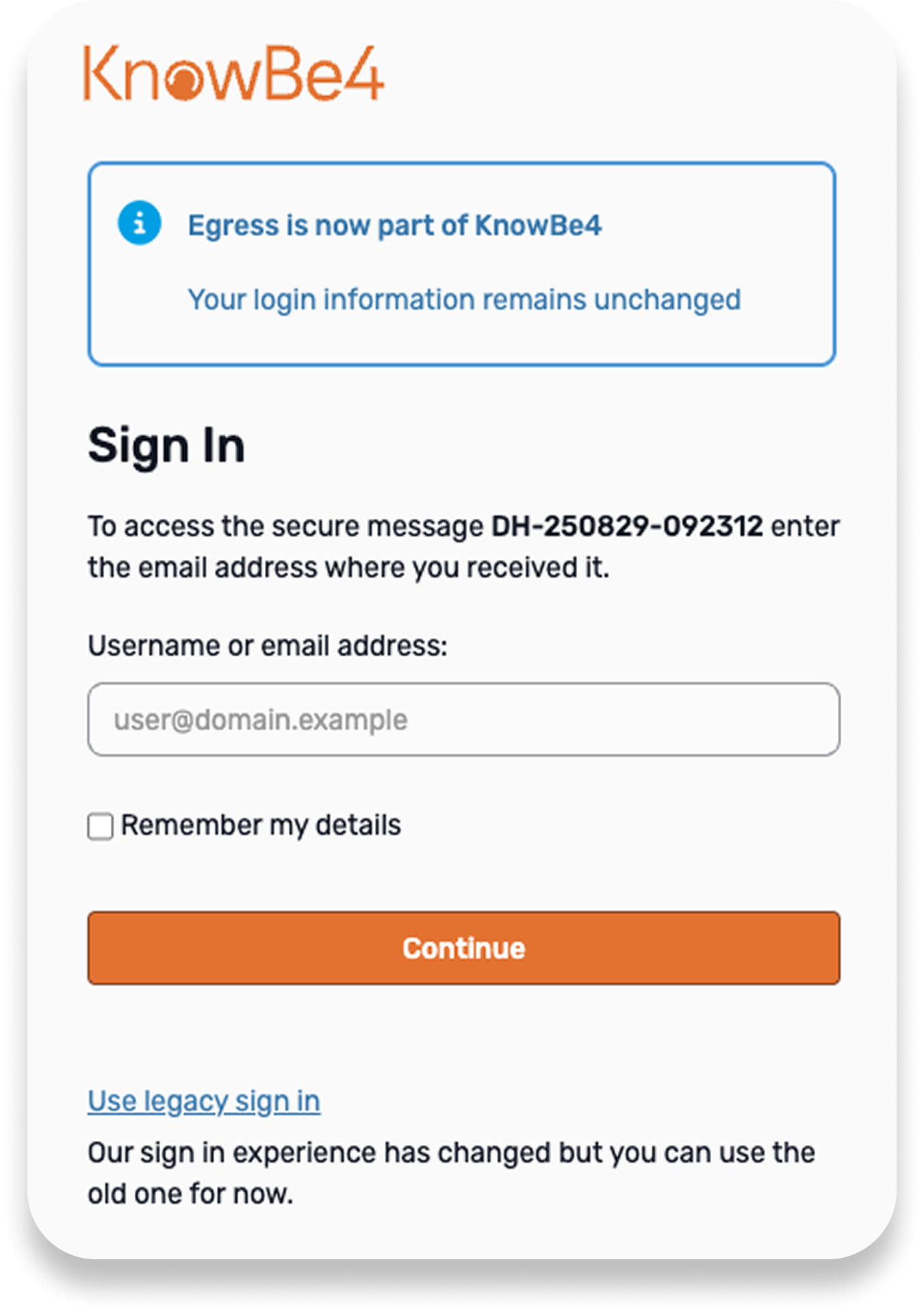
Once logged in, you'll see the full email message, including any attachments.
- You can download attachments directly
- Reply securely via the Egress portal
Use one of these methods. Do not forward the original "Open secure email" link.
Recipients will need (or can create) an Egress account (Free).
Recommended (Most Secure)
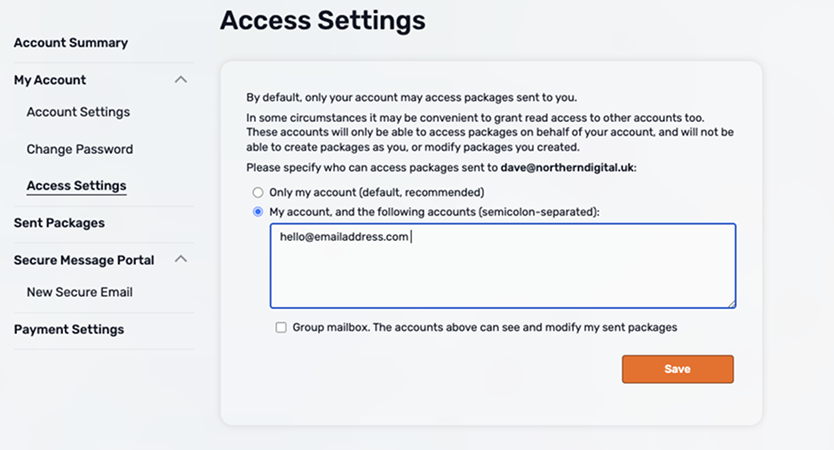
Use this when a colleague needs to view the same secure message/package you received. First grant their email access in Egress, then forward the original secure-email notification.
Go to switch.egress.com and sign in.
- Left menu → Access Settings.
- Select My account
- Enter the colleague's email address(es), separated with ;
- Click Save.
Return to your inbox and open the original "You've received a secure email" message.
- Click Forward, add the newly approved recipient(s), and Send.
- They can open the link because their address now has access in Access Settings.
Not Recommended (Unsecure)
Use this only when you cannot use Method A. This sends a normal email and is not protected by Egress.
- In the Egress secure reader, copy only the text you're allowed to share.
- Download the required attachments (rename clearly if needed).
- Open your standard email app (e.g. Outlook).
- Paste the copied text and attach the files.
- Add the recipient(s) and double-check their addresses.
- Set a clear subject, for example:
[UNSECURE] Forward: <original subject> - Add a line in the email: "Shared outside Egress at recipient's request. Not encrypted."
- Send.
⚠️ Important: not secure
- This removes Egress protection. The email is not secure.
- Do not include sensitive personal data unless you have approval.
- DCS Payroll Agency takes no responsibility for data sent using this method.
✅ Before you send (quick checks)
- Correct recipient(s) and addresses
- All needed attachments clearly named
- Used Method A to keep security
- Method B only as a last resort
Having issues? Try these solutions:
- Make sure you're using the same email address the secure message was sent to
- Check your spam/junk folder for the verification code
- Allow pop-ups in your browser for Egress
- Try a different browser (Chrome, Edge, Safari)
- Clear your browser cache and cookies
Still need help? Visit help.egress.com or ask the sender to resend the secure message.