
THE DCS PAYROLL PORTAL 🧾
You have been set up on the customer portal.
Once you have registered you will be able to access your payslips, P60s and other documentation.


✅ Step 1: Start your registration
Click – Start Registration with DCS Payroll 🔗
- Enter your email address
- Click Register
📬 Check your inbox for a message from DCS Payroll
REGISTRATION
🔒 Step 2: Create your password
From the email:
- Click the link to continue
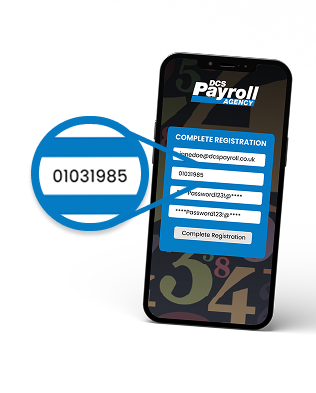
- 🗓️ Enter your Date of Birth (DDMMYYYY)
- 🔐 Create a secure password or passphrase:
- 12–20 characters and 1 number
- Include one of these: ! @ # $ %
- Confirm your password
🎉 Step 3: Now you're registered
✅ You will receive notification that your registration is complete
✅ Step 1: Log in as normal
Sign in using your usual username and password.
LOGIN
✅ Step 2: Go to "My Details"
From your dashboard or menu, click:
This opens your account overview.
✅ Step 3: Scroll down to the Security
Inside My Details, Scroll down to:
This is where your password and security settings live.
✅ Step 4: Turn OTP on
- Tick the OTP (Two-Factor Authentication) box
- Scroll to the bottom
- Click Update
⚠️ Important: The button says Update, not Submit
SECURITY SETTINGS
✓
OTP (Two-Factor Authentication)
✅ Step 5: Log in again
Next time you log in:
- Enter username and password as normal
- You'll then be asked for a security code
✅ Step 6: Enter your email code
- A one-time code is sent to your email
- Type the code into the boxes on screen
- You're securely logged in 🎉
4
7
2
9
1
6
🔒 From now on, every login works like this:
Password
→
Email Code
→
Access
Much safer. Much more secure.